

Exclude TrapEye Devices from Microsoft Defender
This guide explains how to configure Microsoft Defender so its automated scans do not generate unnecessary activity inside the TrapEye console.
Why Exclusions Are Required
Section titled “Why Exclusions Are Required”TrapEye devices intentionally expose services designed to attract attackers. They monitor and react to any connection attempt, scan, probe, authentication request or network interaction.
Microsoft Defender for Endpoint (MDE) and Microsoft Defender for Identity (MDI) occasionally probe network devices.
When these automated probes reach TrapEye, you may see alerts such as:
- Unexpected authentication attempts
- Suspicious port access
Adding exclusions ensures these probes won’t be send to TrapEye devices and misinterpreted as threats.
Identify Devices IP Addresses
Section titled “Identify Devices IP Addresses”Log into your TrapEye Platform.
Navigate to Management → Devices menu.
Click on 3 dots icon and select
Export to CSV.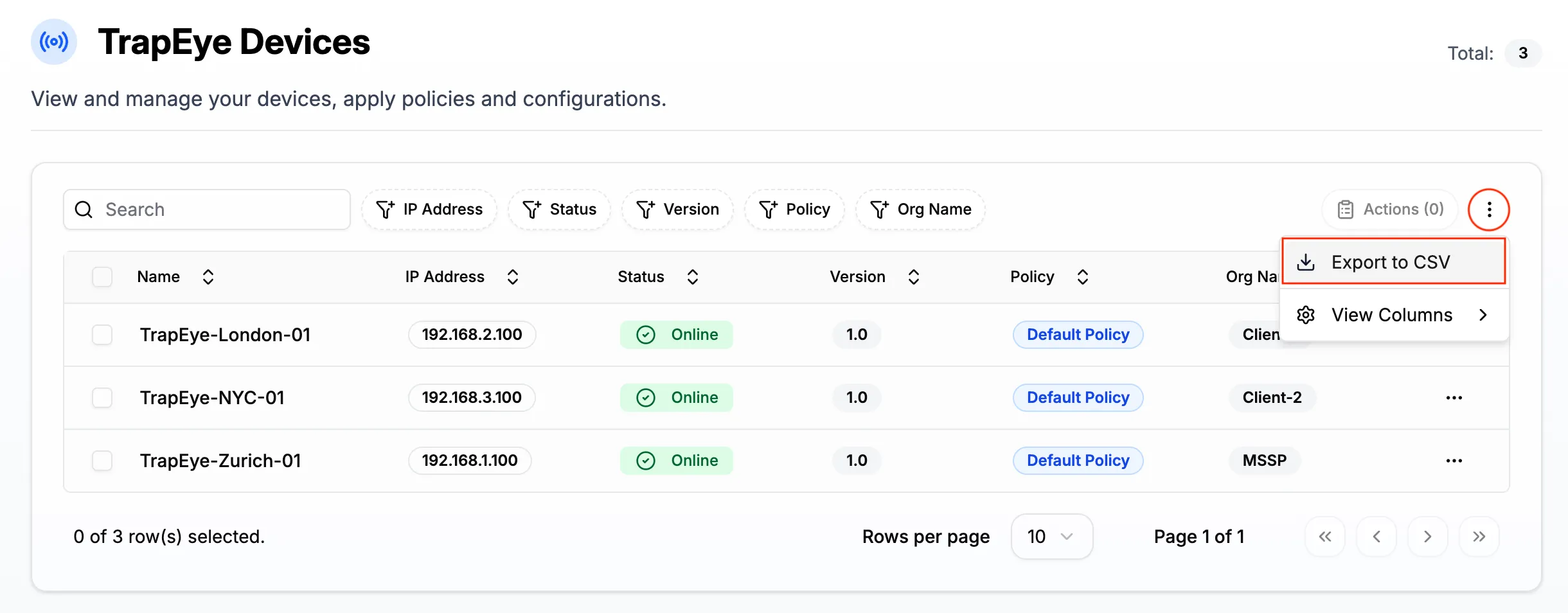
You will find inside the .csv file all the IPs that needs to be enter in Microsoft Defender.
Exclude TrapEye from Device Discovery
Section titled “Exclude TrapEye from Device Discovery”Open the Microsoft Defender Portal at https://security.microsoft.com/.
In the navigation sidebar, go to System → Settings → Device Discovery.
Open the Exclusions section.
Click Add exclusion and enter the first TrapEye IP address.
Repeat the process for all your TrapEye devices.
Confirm changes by clicking Save.
This prevents MDE from attempting to classify or scan TrapEye devices as regular endpoints.
Exclude Trapeye in Microsoft Defender for Identity
Section titled “Exclude Trapeye in Microsoft Defender for Identity”If Defender for Identity is active in your environment, you also need to apply these steps.
In the Defender Portal, open System → Settings → Identities.
Click Global excluded entities.
In the IP addresses section, add each TrapEye device IP individually.
Save the exclusions once all IPs have been added.
Optionnal: Remove TrapEye Appliances from the Defender Assets Inventory
Section titled “Optionnal: Remove TrapEye Appliances from the Defender Assets Inventory”By default, Defender attempts to populate an asset inventory of everything detected on the network.
TrapEye devices do not need vulnerability scoring, patch information, or endpoint analytics. Excluding them keeps the asset list clean.
Go to Assets → Devices in the Defender Portal.
Search for each TrapEye IP.
If a matching entry appears, select it.
Open the actions menu (three dots) and choose Exclude.
If a TrapEye device is not listed, simply continue with the next IP.
Final Notes
Section titled “Final Notes”Your TrapEye devices are now cleanly excluded from Microsoft Defender.
If any Defender alerts still appear for TrapEye after applying these steps, our support team can assist with validation or troubleshooting.