

Teams Integration
Receive real-time notifications in Microsoft Teams whenever a new threat is detected in your infrastructure. This guide will walk you through generating a Teams Webhook and configuring TrapEye to send alerts directly to your Teams channel. For official Microsoft documentation, refer here.
Generate a Teams Webhook
Section titled “Generate a Teams Webhook”Open Microsoft Teams and navigate to the channel where you want to receive alerts. Click on the 3 dot icon then on
Workflows.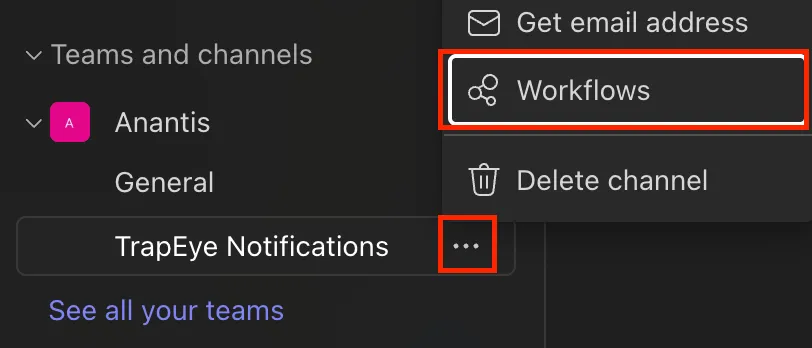
Select the workflow type:
Send webhook alert to a channel.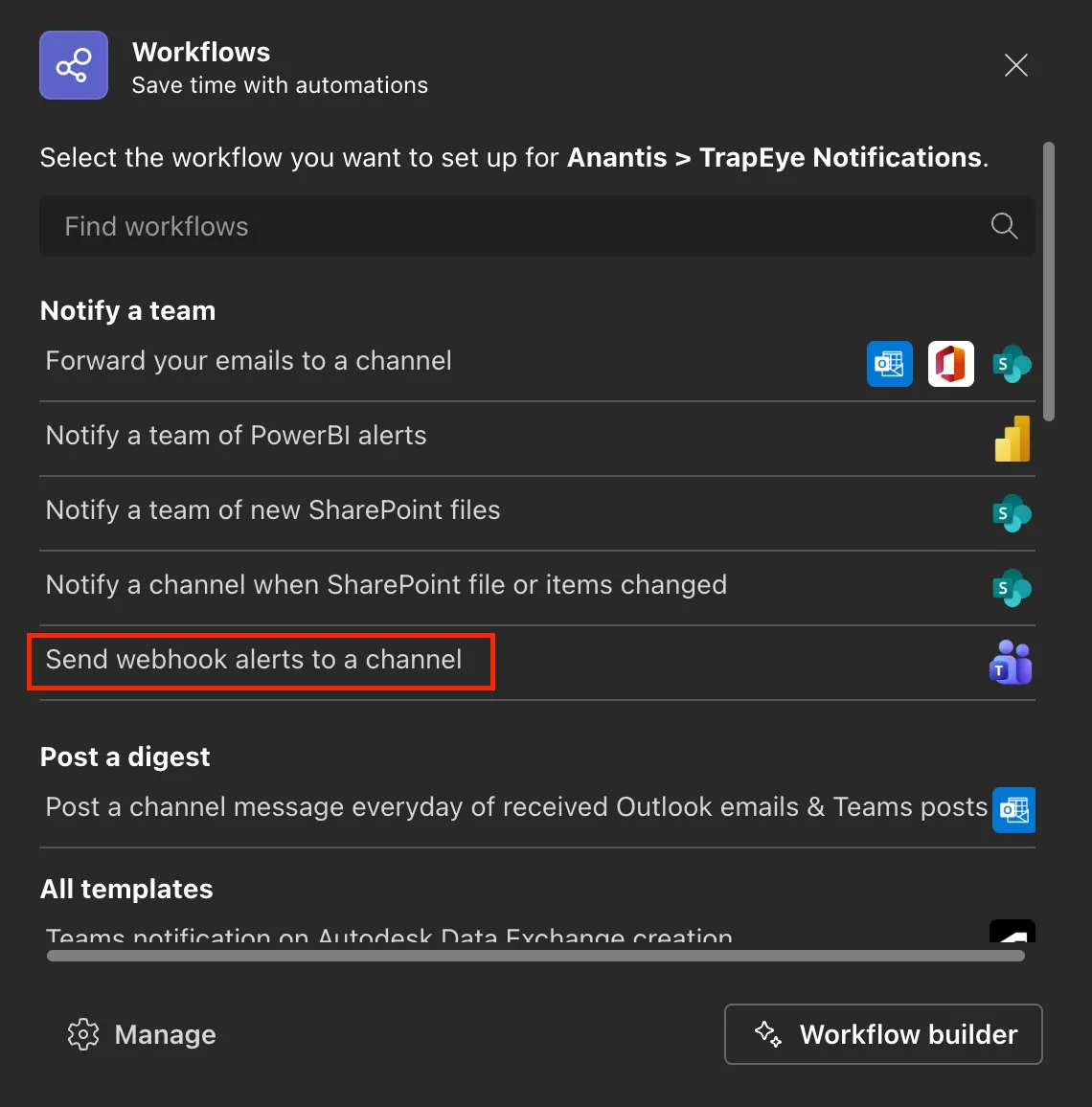
Assign a descriptive name and a connection before clicking
Next.Click on
Add workflowand copy the link, you will need it for the next steps.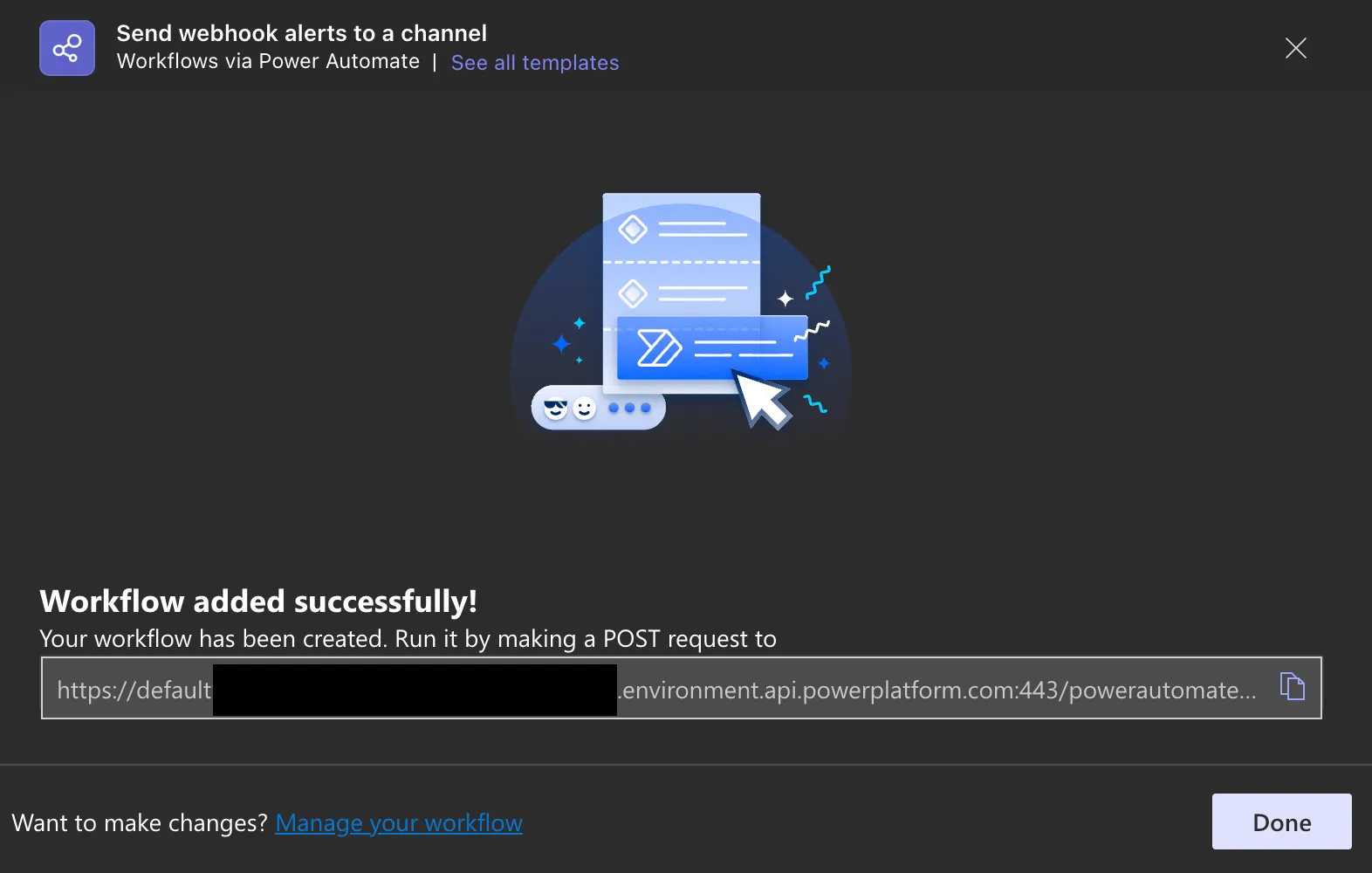
Configure the Webhook Connector in TrapEye
Section titled “Configure the Webhook Connector in TrapEye”Log in to the TrapEye Portal
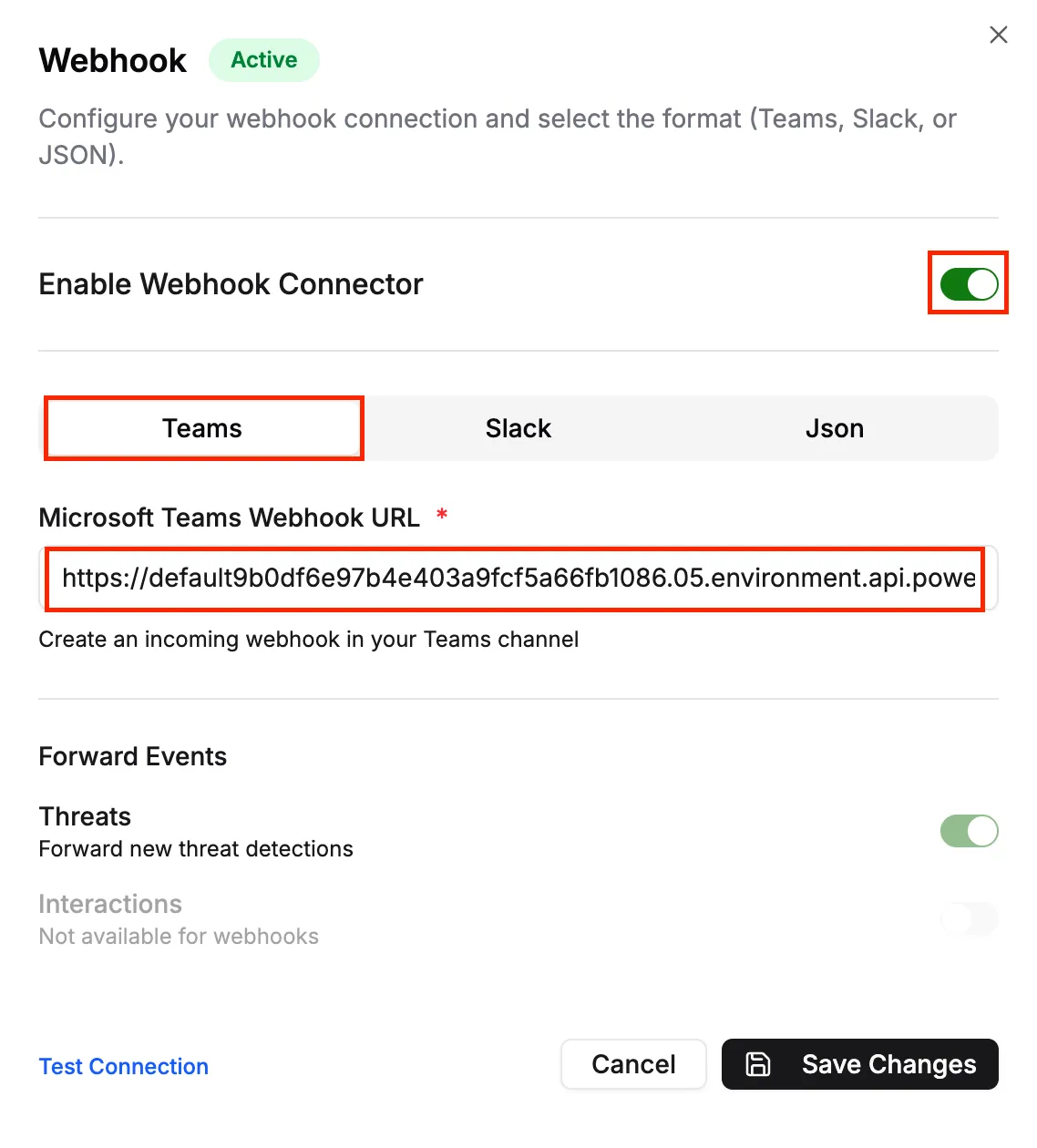
Navigate to Settings → Integrations and select the Webhook card.
- Enable Webhook Connector.
- Choose the Teams tabs.
- Paste the Webhook link generated earlier.
- Click
Save Changesto apply the configuration.
Test the Webhook Connection
Section titled “Test the Webhook Connection”With the connector enabled, click Test Connection in TrapEye.
A sample event will be sent to your Teams channel immediately. Confirm that the notification appears in your channel.
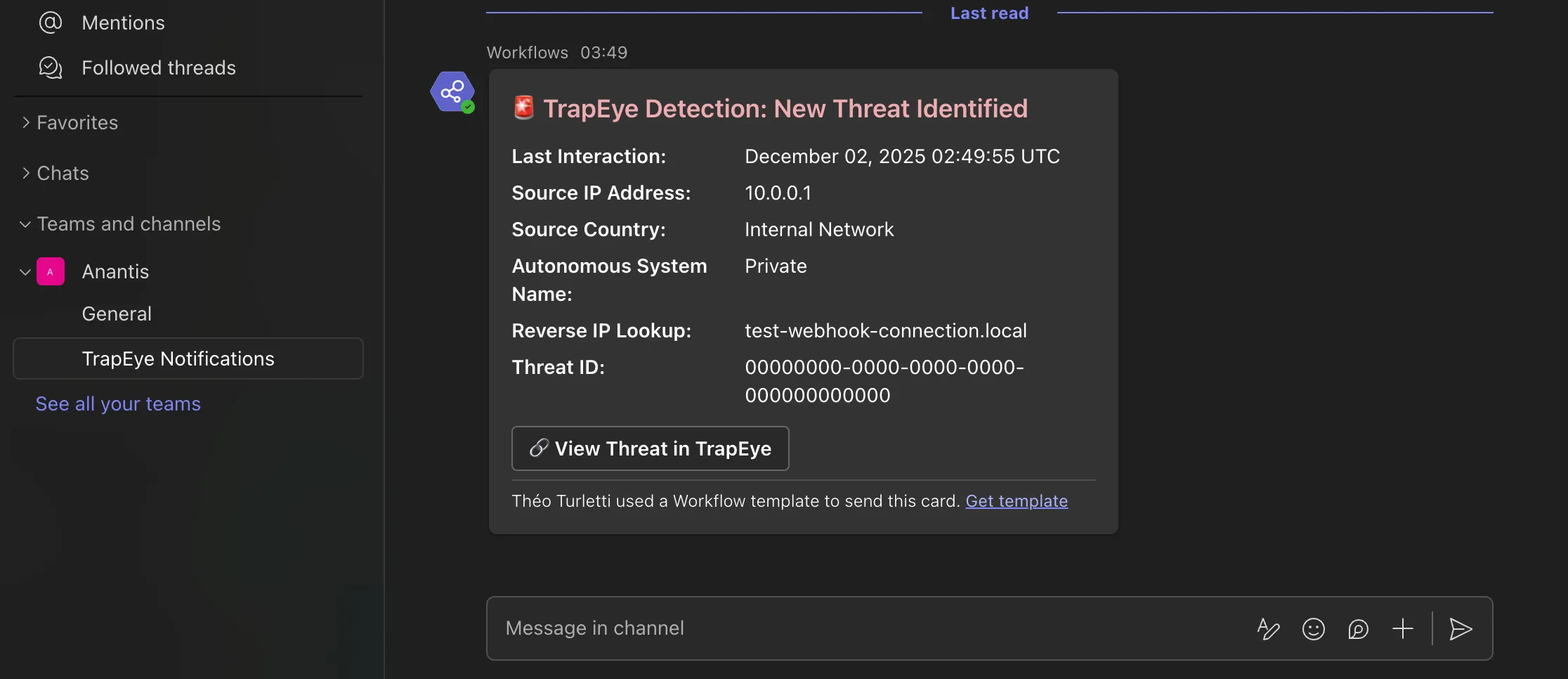
Setup Complete
Section titled “Setup Complete”TrapEye platform is now fully integrated with Microsoft Teams.